

Install Tails from Windows
You need

1 USB stick
Only for Tails!
8 GB minimum

Windows 7
or later


Smartphone
or printer
to follow the instructions

1 hour in total
1.9 GB to download
½ hour to install
Detailed system requirements and recommended hardware.
Tails works on:
- Most PC computers that are less than 10 years old
- Some older Mac computers with an Intel processor
Tails does not work:
- Newer Mac computers with an Apple processor (M1, M2, and so on)
- Smartphones or tablets
- Raspberry Pi
Tails might not work on:
Some older computers, for example, if they don't have 3 GB of RAM.
Some newer computers, for example, if their graphics card is incompatible with Linux. Nvidia or AMD Radeon cards often do not work in Tails.
Detailed hardware requirements
A USB stick of 8 GB minimum or a recordable DVD.
All the data on this USB stick or DVD is lost when installing Tails.
The ability to start from a USB stick or a DVD reader.
A 64-bit x86-64 IBM PC compatible processor.
3 GB of RAM to work smoothly.
Tails can work with less than 3 GB RAM but might experience reduced performance, instability, or crashes.
Recommended hardware
Laptop models evolve too rapidly for us to be able to provide an up-to-date list of recommended hardware. Below are some guidelines if you, or your organization, are considering acquiring a laptop dedicated to running Tails.
For PC
Avoid "gaming" models with Nvidia or AMD Radeon graphics cards.
Consider buying a refurbished laptop from a high-end (professional) series. These are cheaper and will last longer than new but lower-quality laptops.
For example, the Lenovo ThinkPad series work well with Tails, including the X250, X1 Carbon, T440, T480, and T490 models.
If you live in a part of the world where buying refurbished laptops is uncommon, look on eBay and Amazon. Amazon offers a 90-day Amazon Renewed Guarantee.
Consider buying a new laptop from vendors who guarantee the compatibility with Linux and Tails like ThinkPenguin.
For Mac
Unfortunately, we don't know of any Mac model that works well in Tails and can run the latest macOS version.
Install Tails using Rufus
Open the Rufus download.
At the security warning, confirm that you want to open Rufus.
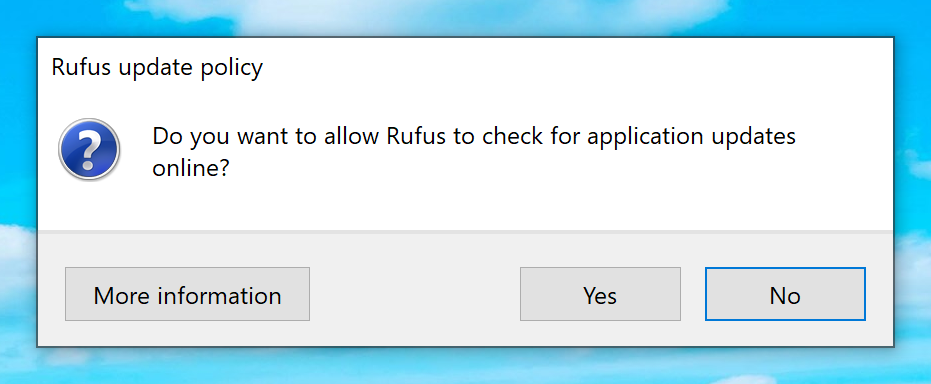
In the update policy dialog, click No.
Rufus starts.
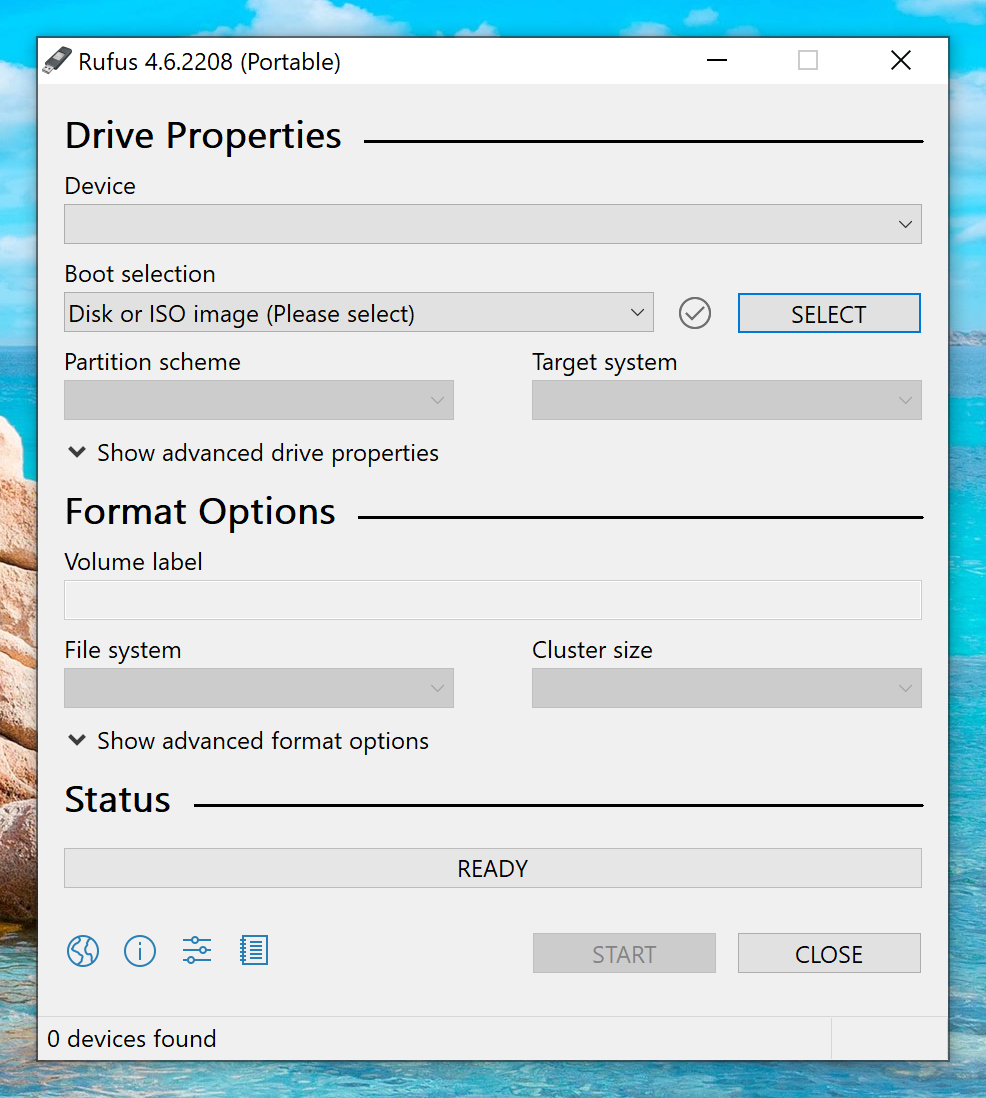
Plug in the USB stick on which you want to install Tails.
All the data on this USB stick will be lost.
Some data might still be recovered using advanced forensics tools.
Wait a few seconds until Rufus detects your USB stick.
Choose your USB stick in the Device menu.
If your USB stick doesn't appear in the Device menu, make sure that you saved Rufus to your usual Downloads folder and not to the USB stick itself.
Click the Select button.
Choose the USB image that you downloaded earlier.
Make sure that the USB image is called tails-amd64-7.3.1.img and has an .img file extension.
If the image has an .iso file extension, it is the wrong image. Please go back to the download step.
Click Start.
Enter your password if you are asked for it.
The installation takes a few minutes.
Close Rufus.
